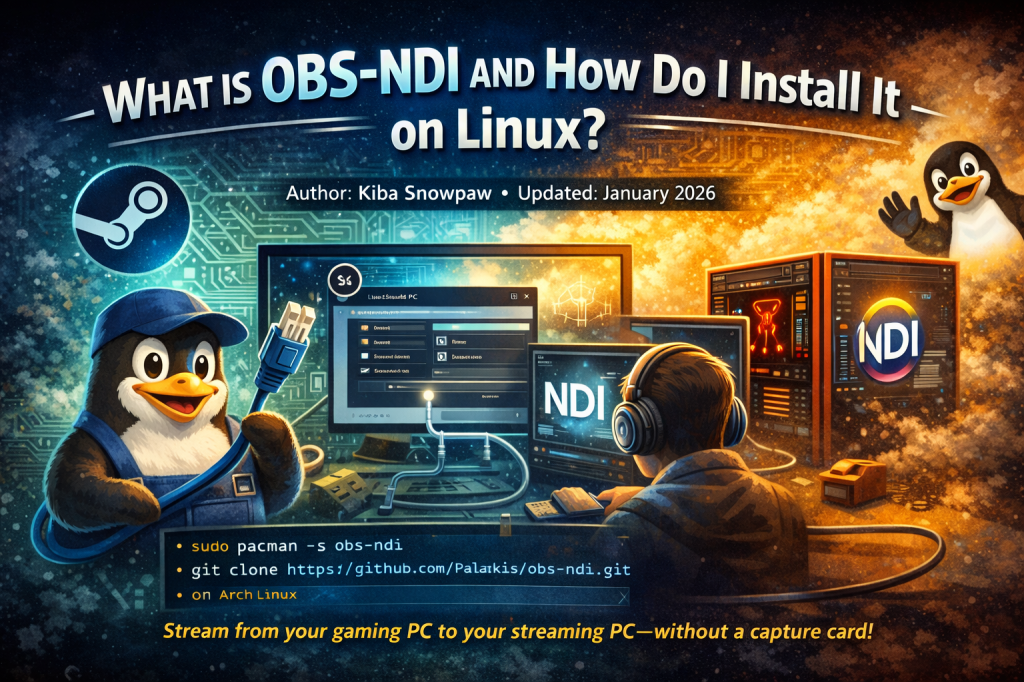


Author: Kiba Snowpaw
Updated: January 2026
🔍 Introduction to OBS-NDI
OBS-NDI is a powerful plugin for OBS (Open Broadcaster Software) that allows audio and video to be transmitted across your local network using the NDI protocol.
This is incredibly useful for multi-PC streaming setups — for example, using one PC to play the game and another to handle the streaming, all over your home network without needing a capture card.
🧠 Key Terms Explained
- OBS: A free and open-source tool for video recording and live streaming.
- NDI (Network Device Interface): A technology developed by NewTek that allows low-latency video and audio sharing between devices on the same network.
💾 How to Install OBS-NDI on Linux (Arch Linux)
OBS does not include NDI support by default, so we’ll walk through installing the OBS-NDI plugin. This guide is tailored for Arch Linux users, but many steps apply to other distros too.
Option 1: Install Using Your Package Manager
If you’re lucky, your package manager has a pre-built package ready:
sudo pacman -S obs-ndiIf this works, you’re done! Open OBS and look for NDI options in the Tools menu.
Option 2: Manual Compilation (If obs-ndi is missing or outdated)
If the package is missing or broken, you can build it manually.
1. Install the Required Build Tools
sudo pacman -S base-devel git cmakeThis installs essential development tools for building software from source.
2. Clone the OBS-NDI Plugin Source Code
git clone https://github.com/Palakis/obs-ndi.gitcd obs-ndi3. Create a Build Directory
mkdir build && cd build4. Run cmake
Note: You must have the NDI SDK installed at /opt/NDI_SDK. If it’s in a different location, change the path below:
cmake -DLIBNDI_DIR=/opt/NDI_SDK -DCMAKE_INSTALL_PREFIX=/usr ..5. Build the Plugin
make6. Install the Plugin
sudo make installOnce completed, launch OBS. You should now see “NDI Output” and other NDI options under the Tools menu.
✅ Final Notes
OBS-NDI is a game-changer for streamers with multiple PCs. It eliminates the need for expensive capture cards and allows for clean, high-quality video transmission across your local network.
Make sure your firewall allows NDI traffic, and for best performance, use a wired network connection (Gigabit Ethernet is ideal).
💬 Need Help?
If something goes wrong or OBS doesn’t detect NDI, check the following:
- Is the NDI SDK installed in the right directory?
- Did you restart OBS after installing?
- Check system logs or launch OBS from the terminal to see error messages.
If this guide helped you out, feel free to explore more Linux gaming topics in the community or drop your questions in the comments!
🐾 About the Author
Kiba Snowpaw is a Linux gamer and streamer dedicated to making advanced tools more accessible for beginners. Whether you’re trying to boost game performance or set up complex recording setups, Kiba’s here to guide you step by step.
 Kiba Snowpaw
Leave a comment