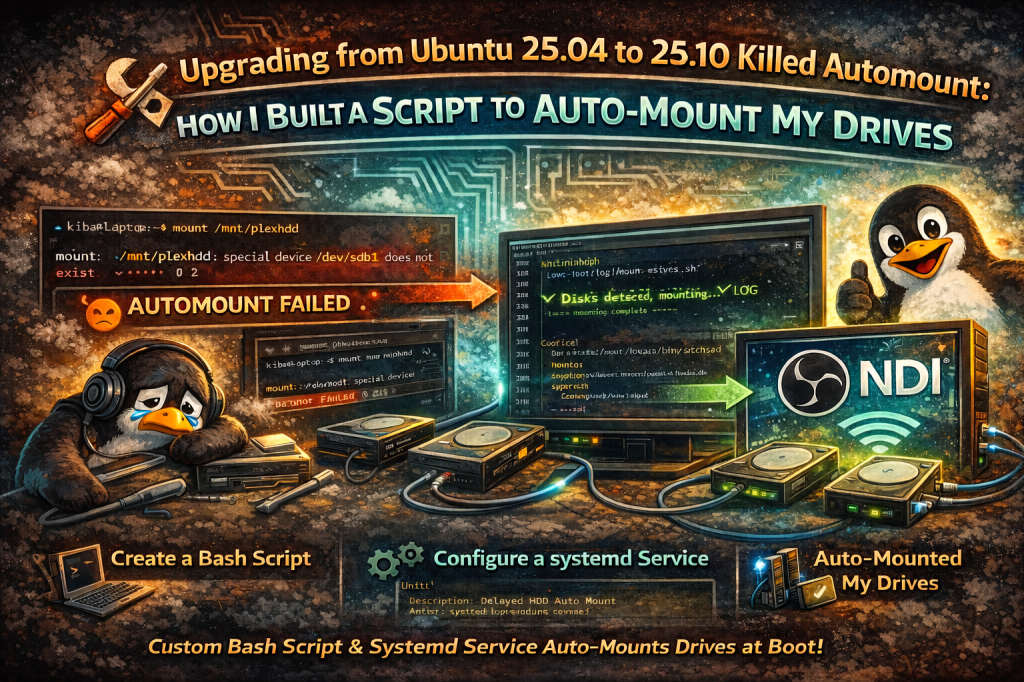


After upgrading my system from Ubuntu 25.04 to 25.10, I encountered a frustrating issue the automount feature stopped working entirely for my internal drives. Despite trying numerous solutions and troubleshooting every aspect of the system, I ended up creating a custom script to solve the problem, ensuring my drives are mounted automatically at boot without needing manual intervention. Here’s the journey I took, including the code and configuration steps to make it work.
The Problem: Automount Failing After Upgrade
After upgrading from Ubuntu 25.04 to 25.10, I noticed that my internal hard disk partitions (used for storing media files) no longer auto-mounted at boot. This was strange because, in Ubuntu 25.04, everything had been working perfectly. I couldn’t even manually mount the drives easily, as the system seemed to be ignoring them.
Every time I rebooted, I had to manually mount the partitions for them to show up. I could not figure out why the automount system was no longer functioning. After reviewing the logs and the system’s fstab configurations, I found that the issue had to do with the timing of device enumeration during boot. The system wasn’t recognizing my drives properly during startup.
What I Tried: Various Solutions and Fixes
Initially, I tried several potential solutions to fix the issue:
- Rebuilding fstab: I checked and re-checked my /etc/fstab file to ensure that the partitions were properly listed, with the correct UUIDs and mount points. However, this did not fix the issue, as the system still failed to mount the partitions during boot.
- Systemd Automount Options: I explored various systemd-related fixes, such as adding automount options in the fstab, using `x-systemd.automount`, and tweaking the systemd mount units. While these sometimes worked, they were not reliable, as the drives would not always mount when needed.
- Disk UUIDs and Devices: I verified the UUIDs for my partitions using the `blkid` command and ensured that the `/dev/sda1` and `/dev/sdb1` devices were properly detected by the system. Despite this, systemd wasn’t recognizing them as required for boot-time mounting.
- Delaying Disk Mounting with systemd: I added `x-systemd.device-timeout` and `x-systemd.automount` options to the fstab entries, but this still failed to solve the issue due to race conditions during boot-up, as the system wasn’t waiting long enough for the disks to be fully initialized.
After hours of troubleshooting and exhausting the usual methods, I realized that the issue stemmed from timing conflicts between when the system tried to mount the partitions and when the hard drives were ready. At this point, I decided to take a more direct approach creating a custom systemd service and script that would mount the drives after boot is complete.
Solution: Creating a Custom Mount Script and systemd Service
Instead of relying on traditional automount methods, I decided to manually create a systemd service that would run after boot, check for the availability of the drives, and mount them if they were detected. Here’s how I went about it:
Step 1: Modify /etc/fstab
First, I removed the existing entries in the /etc/fstab file for the affected drives to prevent any conflict with the custom mount script. I commented out the entries for the drives in question:
# UUID=a65c6b91-6026-45fe-a0ee-58a4e6098e76 /mnt/plexhdd ext4 defaults,nofail 0 2
# UUID=f0d029ce-9501-4407-b30d-c9eb094032b3 /mnt/nashdd2 ext4 defaults,nofail 0 2
Step 2: Create the Mount Script
Next, I created a custom bash script that checks for the presence of the drives and mounts them if they are found:
sudo nano /usr/local/bin/mount-hdds.shIn the script, I specified the device names for the drives, which are `/dev/sda1` and `/dev/sdb1`, and wrote the following:
#!/bin/bashLOG="/var/log/mount-hdds.log"PLEX="/dev/sdb1"NAS="/dev/sda1"echo "==== $(date) Starting HDD auto-mount ====" >> "$LOG"for i in {1..15}; do if [ -b "$PLEX" ] && [ -b "$NAS" ]; then echo "$(date) Disks detected, mounting..." >> "$LOG" mount -o rw "$PLEX" /mnt/plexhdd >> "$LOG" 2>&1 mount -o rw "$NAS" /mnt/nashdd2 >> "$LOG" 2>&1 exit 0 fi echo "$(date) Waiting for disks... attempt $i" >> "$LOG" sleep 2doneecho "$(date) ERROR: Disks never appeared" >> "$LOG"exit 1The script runs a loop 15 times (with a 2-second wait between each attempt) to check if the drives are available. Once they are found, the script mounts the partitions to their respective mount points, `/mnt/plexhdd` and `/mnt/nashdd2`.
Step 3: Make the Script Executable
Once the script was created, I made it executable by running the following command:
sudo chmod +x /usr/local/bin/mount-hdds.shStep 4: Create a systemd Service
I then created a custom systemd service to ensure the script would run at boot:
sudo nano /etc/systemd/system/mount-hdds.serviceThe service file contained the following content:
[Unit]Description=Delayed HDD Auto MountAfter=local-fs.target systemd-udev-settle.serviceWants=systemd-udev-settle.service[Service]Type=oneshotExecStart=/usr/local/bin/mount-hdds.shRemainAfterExit=trueUser=rootGroup=root[Install]WantedBy=multi-user.targetThe key here is the `After=local-fs.target systemd-udev-settle.service` line, which ensures that the script runs only after the filesystem is ready and all devices have been initialized. The service runs the mount script, and the `RemainAfterExit=true` option keeps the service in an “active” state even after the script has finished running.
Step 5: Enable and Start the Service
With the service created, I enabled it to start automatically at boot:
sudo systemctl daemon-reloadsudo systemctl enable mount-hdds.servicesudo systemctl start mount-hdds.serviceAt this point, the disks were mounted, and everything was working perfectly. The service now runs automatically at boot and mounts the drives without any user intervention.
While upgrading from Ubuntu 25.04 to 25.10 caused my automount to fail, I was able to solve the problem by creating a custom mount script and systemd service that automatically mounts my hard drives during boot. This approach bypasses the timing issues that prevent drives from being detected during boot, and it ensures that my drives are always available without requiring me to log in or manually mount them each time.
If you’re facing similar issues with automount not working after an upgrade or system change, I highly recommend using a custom systemd service like this one. It provides a clean, stable solution that guarantees your drives will be mounted reliably every time.
To check if the systemd service is working correctly:
sudo systemctl status mount-hdds.serviceGood luck with your system, and happy mounting!

 Kiba Snowpaw
Leave a comment